Takeaway
Achieving optimal game engine performance in Unity is a multifaceted endeavor requiring a deep understanding of rendering pipelines, memory management, CPU utilization, and advanced profiling techniques. Proactive optimization from the architectural design phase, coupled with continuous monitoring and iterative refinement, is paramount for delivering high-fidelity, smooth-running games.
The Imperative of Performance Optimization in Unity
In the competitive landscape of game development, performance is not merely a desirable feature; it is a fundamental requirement for player engagement and commercial success. A laggy, stuttering, or unresponsive game, regardless of its artistic merit or innovative mechanics, will inevitably lead to player frustration and abandonment. For Unity game developers, mastering the art and science of performance optimization is crucial for delivering polished, immersive experiences across a diverse range of hardware. This article delves into advanced strategies and technical considerations for significantly improving game engine performance within the Unity ecosystem.
Understanding the Performance Bottlenecks
Before embarking on optimization efforts, it’s critical to identify the root causes of performance degradation. Unity games typically encounter bottlenecks in one or more of the following areas:
- CPU Bound: The CPU is struggling to process game logic, physics, animation, or draw calls. This often manifests as high “Main Thread” or “CPU” spikes in the Unity Profiler.
- GPU Bound: The graphics card is overwhelmed by the complexity of rendering, such as excessive polygon counts, complex shaders, high-resolution textures, or too many post-processing effects. This is indicated by high “GPU” times in the Profiler.
- Memory Bound: The game is consuming too much RAM, leading to frequent garbage collection (GC) pauses, excessive disk swapping, or even crashes on lower-end devices.
- I/O Bound: Slow loading times or stuttering during asset streaming, often due to inefficient asset bundling, uncompressed assets, or slow storage access.
Effective optimization begins with accurate profiling. Unity’s built-in Profiler (Window > Analysis > Profiler) is an indispensable tool. For more granular insights, consider external tools like RenderDoc for deep GPU analysis or Intel VTune Amplifier for CPU-centric profiling, especially on PC platforms. (Data Source: Unity Technologies Documentation, 2023).
Advanced Rendering Optimizations
The rendering pipeline is often the most significant performance hog. Optimizing it requires a multi-pronged approach.
Draw Call Reduction
Each draw call incurs CPU overhead. Minimizing them is paramount.
- Static Batching: For static (non-moving) geometry that shares the same material, Unity can combine them into larger meshes at build time, reducing draw calls. Ensure objects are marked as “Static” in the Inspector.
- Dynamic Batching: For small, moving meshes that share the same material, Unity can attempt to batch them at runtime. This has limitations (e.g., vertex count, non-uniform scaling) and can sometimes be less efficient than instancing.
- GPU Instancing: The most powerful technique for rendering many identical meshes (e.g., trees, rocks, particles) with the same material. It sends data for all instances in a single draw call. Ensure your shaders support instancing (e.g., by using
#pragma instancing_options assumeuniformscalingandUNITY_SETUP_INSTANCE_ID). - SRP Batcher: If you’re using a Scriptable Render Pipeline (URP or HDRP), the SRP Batcher significantly reduces CPU overhead for draw calls by batching shader properties. Ensure your custom shaders are compatible.
Shader and Material Optimization
Complex shaders can quickly become GPU bottlenecks.
- Shader Complexity: Avoid overly complex mathematical operations, excessive texture lookups, or multiple passes within a single shader. Use simpler, optimized shaders where possible (e.g., Mobile/Diffuse instead of Standard for mobile).
- Texture Resolution and Compression: Use the lowest acceptable texture resolution. Employ appropriate compression formats (e.g., ASTC for mobile, BC7 for PC) to reduce VRAM usage and bandwidth. Mipmaps are essential for performance and visual quality at varying distances.
- Material Instancing: Where possible, share materials between objects. If objects need slightly different properties (e.g., color), consider using Material Property Blocks instead of creating new material instances, which can break batching.
- Shader Stripping: Unity includes variants for all possible shader features by default. Use “Shader Stripping” settings (Edit > Project Settings > Graphics) to remove unused shader variants for specific platforms, significantly reducing build size and load times.
Occlusion Culling and Frustum Culling
Don’t render what the player can’t see.
- Frustum Culling: Unity automatically performs frustum culling, not rendering objects outside the camera’s view frustum.
- Occlusion Culling: This advanced technique prevents rendering objects that are hidden behind other objects (occluders). It requires baking occlusion data in the editor (Window > Rendering > Occlusion Culling). Proper setup of occluders and occludees is critical for effectiveness.

CPU and Scripting Optimizations
Efficient code and judicious use of Unity’s features are vital for CPU performance.
Garbage Collection (GC) Optimization
Frequent memory allocations and deallocations lead to GC pauses, causing noticeable hitches.
- Avoid Allocations in Hot Paths: Do not allocate new memory (e.g., new arrays, lists, strings) inside
Update(),FixedUpdate(), or other frequently called methods. - Object Pooling: Instead of instantiating and destroying objects repeatedly (e.g., bullets, particles), use object pooling. Pre-allocate a pool of objects and reuse them.
- String Manipulation: String operations (concatenation, formatting) generate garbage. Use
StringBuilderfor complex string building or pre-allocate strings where possible. - Caching References: Cache references to components (e.g.,
GetComponent()) inAwake()orStart()rather than calling them repeatedly. - Collections: Use
ListandDictionarycarefully. Clear them instead of re-instantiating. Consider usingNativeArrayorNativeListwith the Burst Compiler for high-performance, GC-free data structures.
Physics and Collision Optimization
Physics simulations can be CPU-intensive.
- Layer-Based Collision Matrix: Configure the collision matrix (Edit > Project Settings > Physics) to prevent unnecessary collision checks between layers that don’t need to interact.
- Rigidbody Sleep Thresholds: Allow rigidbodies to “sleep” when they are not moving, reducing simulation overhead.
- Collision Detection Mode: Use “Discrete” for most objects. Only use “Continuous” or “Continuous Dynamic” for fast-moving objects that might tunnel through others, as they are more expensive.
- Reduce Collider Complexity: Use primitive colliders (Box, Sphere, Capsule) whenever possible. Mesh Colliders are the most expensive, especially non-convex ones.
Multithreading and Job System
Leverage modern multi-core CPUs.
- Unity Job System: This system allows you to write thread-safe code that Unity can execute on worker threads, offloading work from the main thread. It’s ideal for parallelizing data-oriented tasks like AI pathfinding, complex calculations, or procedural generation.
- Burst Compiler: Used in conjunction with the Job System, the Burst Compiler translates C# jobs into highly optimized native machine code (SIMD instructions), providing significant performance boosts.
- DOTS (Data-Oriented Technology Stack): While a paradigm shift, DOTS (ECS, Job System, Burst) is Unity’s long-term vision for high-performance, scalable game development. Gradually adopting DOTS principles can yield substantial performance gains for complex systems.
Asset Management and Build Optimizations
Efficient asset pipelines and build settings are crucial for load times and overall performance.
Asset Bundles and Addressables
For large games, managing assets efficiently is critical.
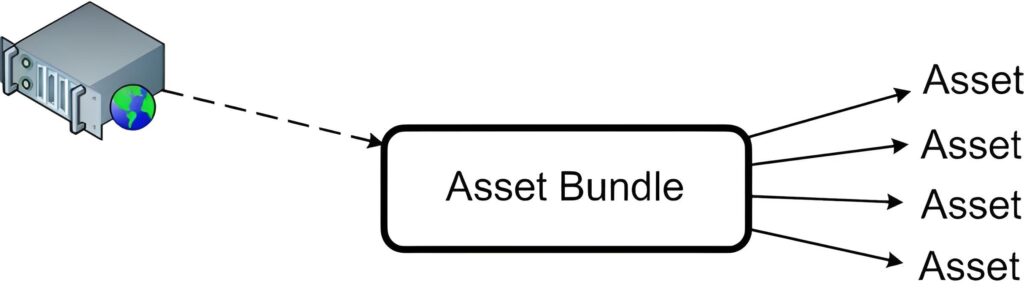
- Asset Bundles: Group assets into bundles that can be loaded on demand, reducing initial build size and memory footprint.
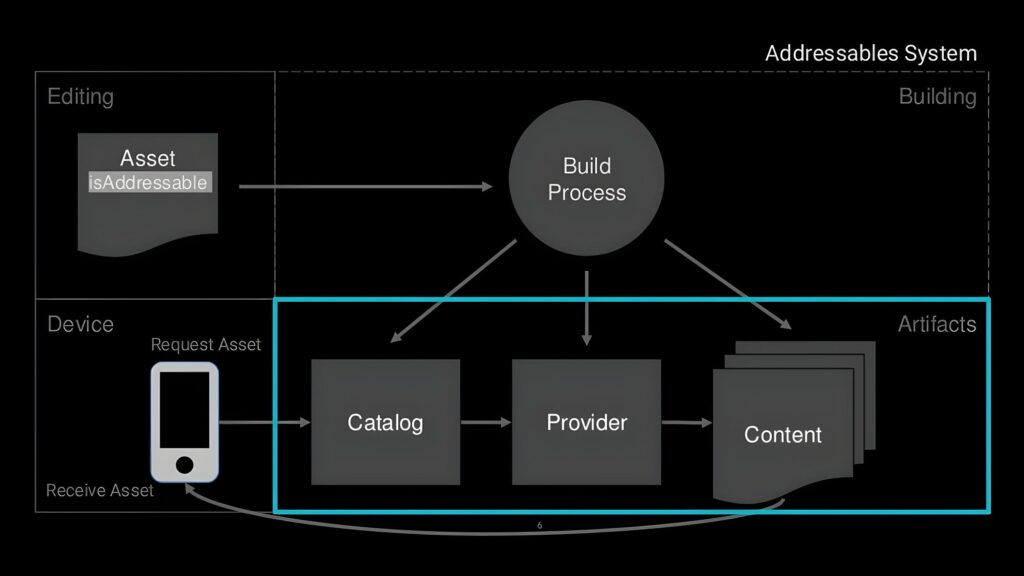
- Addressables System: Unity’s Addressables system is a higher-level abstraction over Asset Bundles, simplifying asset management, dependency tracking, and content delivery (local, remote, DLC). It’s highly recommended for complex projects.
Texture and Mesh Import Settings
Fine-tune asset import settings for each platform.
- Texture Import Settings: Set appropriate max sizes, compression formats, and mipmap settings per platform. Disable “Read/Write Enabled” unless absolutely necessary, as it duplicates texture data in memory.
- Mesh Import Settings: Disable “Read/Write Enabled” for meshes unless you need to modify vertex data at runtime. Optimize mesh data (e.g., “Optimize Mesh” option, “Generate Colliders” only when needed).
Build Settings and Player Settings
Configure your project for target platforms.
- Scripting Backend: For mobile, IL2CPP generally offers better performance than Mono. For PC, both are viable, but IL2CPP often provides better security and performance.
- API Compatibility Level: Set to .NET Standard 2.1 or .NET Framework for smaller build sizes and faster startup.
- Graphics APIs: Explicitly select the graphics APIs for your target platform (e.g., Vulkan/OpenGL ES 3.x for Android, Metal for iOS, DirectX 11/12 for Windows). Remove unused APIs.
- Frame Rate Target: Set a target frame rate (e.g., 60 FPS) using
Application.targetFrameRateto prevent unnecessary rendering cycles and save battery life on mobile.
Continuous Profiling and Iterative Refinement
Performance optimization is not a one-time task but an ongoing process.
- Regular Profiling: Profile your game frequently, especially after implementing new features or making significant changes. Profile on target hardware, not just in the editor.
- Baseline and Regression Testing: Establish performance baselines and monitor for regressions. Automated performance tests can be invaluable.
- Small, Incremental Changes: Implement optimizations in small, measurable steps. Profile after each change to verify its impact.
- Focus on Bottlenecks: Don’t optimize prematurely. Use the profiler to identify the biggest bottlenecks and address them first. A 20% improvement in a 5% bottleneck is less impactful than a 5% improvement in a 50% bottleneck. (Data Source: Industry Best Practices, GDC Talks, ongoing).
Mastering Unity performance optimization is a journey that combines technical knowledge, analytical skills, and a systematic approach. By diligently applying advanced rendering techniques, optimizing CPU usage through efficient scripting and multithreading, and streamlining asset management, Unity game developers can unlock the full potential of their projects, delivering smooth, immersive, and commercially successful games. Continuous profiling, iterative refinement, and a deep understanding of Unity’s underlying architecture are the cornerstones of this endeavor.
Key Takeaways:
- Profile Relentlessly: Use Unity Profiler and external tools to identify CPU, GPU, and memory bottlenecks.
- Optimize Rendering: Reduce draw calls (batching, instancing), simplify shaders, and implement culling (occlusion, frustum).
- Minimize GC: Avoid allocations in hot paths, use object pooling, and leverage the Job System/Burst Compiler.
- Efficient Assets: Use appropriate texture compression, optimize mesh settings, and employ Addressables for large projects.
- Leverage Multithreading: Utilize Unity’s Job System and Burst Compiler for parallelizable tasks.
- Iterate and Test: Performance optimization is an ongoing process; continuously profile and refine on target hardware.